Why a Multiport Charger Can Slow Down When You Plug In Another Device
A multiport charger has a total power budget. When a second device starts charging, the charger may assign power differently across its active ports. The useful next step is to read that charger’s port-combination chart, rather than assume every port keeps its single-device maximum.
Last reviewed: September 12, 2026.
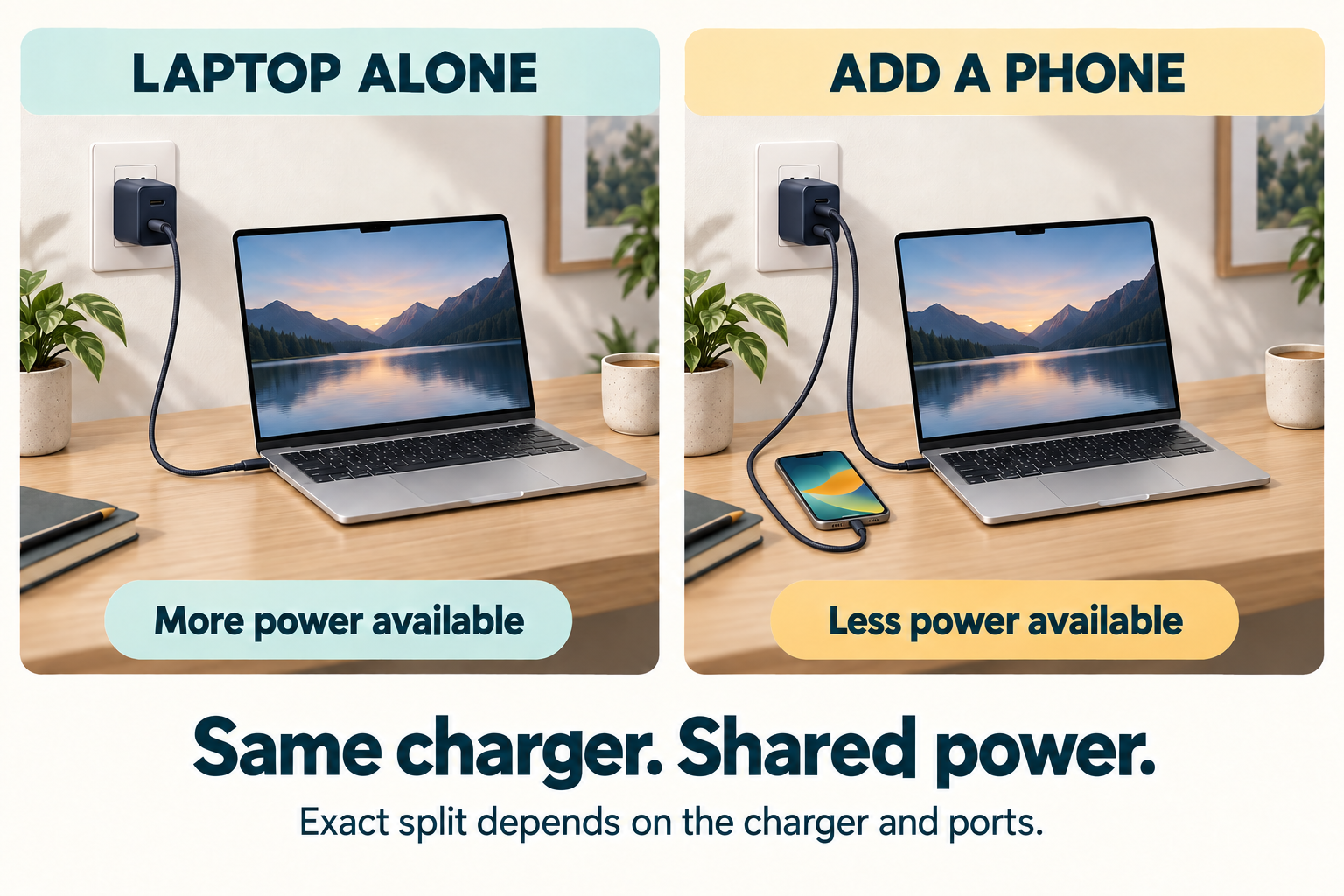
Start with the port-combination chart
Look for the exact model’s manual, support page, or label. A charger can have different limits for one device, two devices, and three devices. Those limits can also depend on which ports are used. Anker’s support documentation for one three-port charger, for example, describes different allocations once dual-port charging begins; that example is specific to that model, not a rule for every charger.
- Identify the exact charger. Match the model number, not just the brand or headline wattage.
- Find the row for the ports you are actually using. Compare the single-device row with the relevant two- or three-device row.
- Prioritize the device that needs more power. Put it on the port the chart assigns the larger share, if the manufacturer specifies one.
- Test one change at a time. Disconnect the second device, confirm the first device’s behavior, then reconnect it using the documented port combination.
Why the charge indicator can change
Adding a device can make the charger and connected devices establish a new charging arrangement. That can look like slower charging, a changed estimate, or a brief interruption while the setup changes. It does not by itself prove that the charger, cable, or device is faulty. If the chart says the active combination provides less power than the device normally uses, the slower result is expected.
Rule out the other common pieces
Keep the charger and devices the same while you test the cable and outlet. Apple’s Mac troubleshooting guidance recommends confirming the outlet works and trying another charging-capable USB-C cable when diagnosing a Mac charging problem. For another device, use that manufacturer’s charging instructions rather than applying Mac-specific steps.
A cable can still be the limiting part of a setup. Use the exact cable specification and your device maker’s requirements; the USB-C connector shape alone does not establish charging capability. Our USB-C cable fast-charging checklist explains what to verify before replacing a cable.
When to stop troubleshooting
Do not keep using a charger or cable that is damaged, discolored, or behaves erratically when moved. Apple also advises getting the equipment evaluated when a cable only works when moved, and to seek help if sparking comes from somewhere other than the plug blades. Follow the instructions for your own device and charger, and use a qualified service provider when you are unsure.
Build a less frustrating charging setup
For a shared desk or travel kit, start with the devices you need to charge together and select a charger whose documentation covers that combination. For car charging, see our USB-C car-charger wattage guide. For a broader desk setup, see charging stations for multiple devices and travel electronics organizers.
Sources and accuracy note
This is a general troubleshooting guide, not a product test or a universal port-allocation chart. Sources checked September 12, 2026: Anker’s port-allocation support article for its 100W three-port charger and Apple’s USB-C Mac charging troubleshooting guidance. Use the documentation for your exact charger and device for model-specific limits and procedures.