How to Tell Whether a USB-C Cable Supports Fast Charging
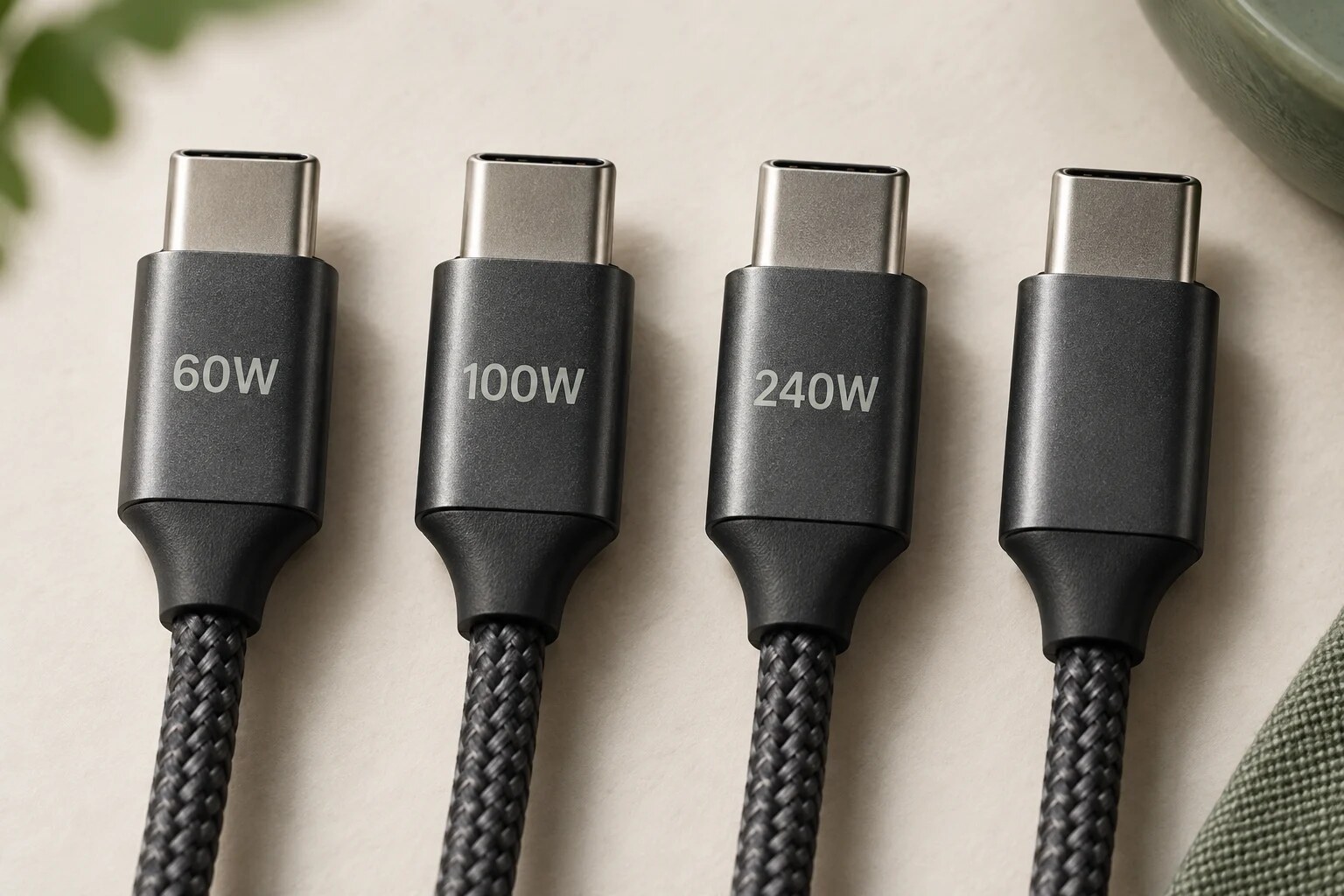
Check the cable’s wattage rating and your device’s charging requirements before buying another charger. A USB-C plug tells you the connector shape. Check the specification for power limits, data speed and display support. This checklist covers USB-C to USB-C cables used with USB Power Delivery; confirm any device-specific fast-charging requirements with the manufacturer.
Last reviewed: September 10, 2026.
The quick check
- Find the exact cable specification. Look on the connector, packaging or manufacturer’s page for the model you own. A listing that only says “fast charging” leaves the important question unanswered.
- Compare its power rating with your device’s needs. Check the device maker’s recommended charging setup, including the charger and cable. A higher-rated cable cannot make a lower-powered charger supply more power.
- Check data and video separately. If this cable also connects a dock, monitor or external drive, charging wattage is only part of the decision.
What 60W, 100W and 240W mean
These numbers describe a power capability, not a guaranteed charging speed. USB Power Delivery lets compatible equipment negotiate power; the device draws what it needs within the supported setup.
| Rating | What to check |
|---|---|
| 60W | Check whether your device’s recommended charging setup fits within that limit. Do not assume it supports a laptop’s higher-power charging mode. |
| 100W | A rating found on older USB PD cables. It does not identify a cable designed for the newer 240W power range. |
| 240W | A higher power ceiling for compatible equipment. Check whether your charging setup needs that capacity. |
USB-IF’s current certification program uses 60W or 240W power markings for USB-C to USB-C cables. The organization replaced its 100W cable certification category with 240W. That certification change is not a reason to discard a working cable that meets your equipment’s requirements.
What if the cable has no wattage marking?
Try to identify the model from its packaging, receipt or manufacturer documentation. Without a specification, you cannot confirm the supported power. A missing mark alone does not prove the cable is defective.
If you cannot identify it and need a dependable laptop-charging setup, use a cable with documented capability that meets the device maker’s requirements. Keep an identified cable with that charger so you do not have to solve the same mystery next trip.
A charging cable may be a poor monitor cable
Apple’s comparison makes the distinction concrete: its 2-meter USB-C Charge Cable supports USB 2.0 data at up to 480Mbps and no video, while its 0.8-meter Thunderbolt 3 cable supports faster data and display connections. Both use USB-C connectors and can charge devices.
For a monitor or dock, read the required connection standard and the cable’s video/data specification.
Before replacing your charger
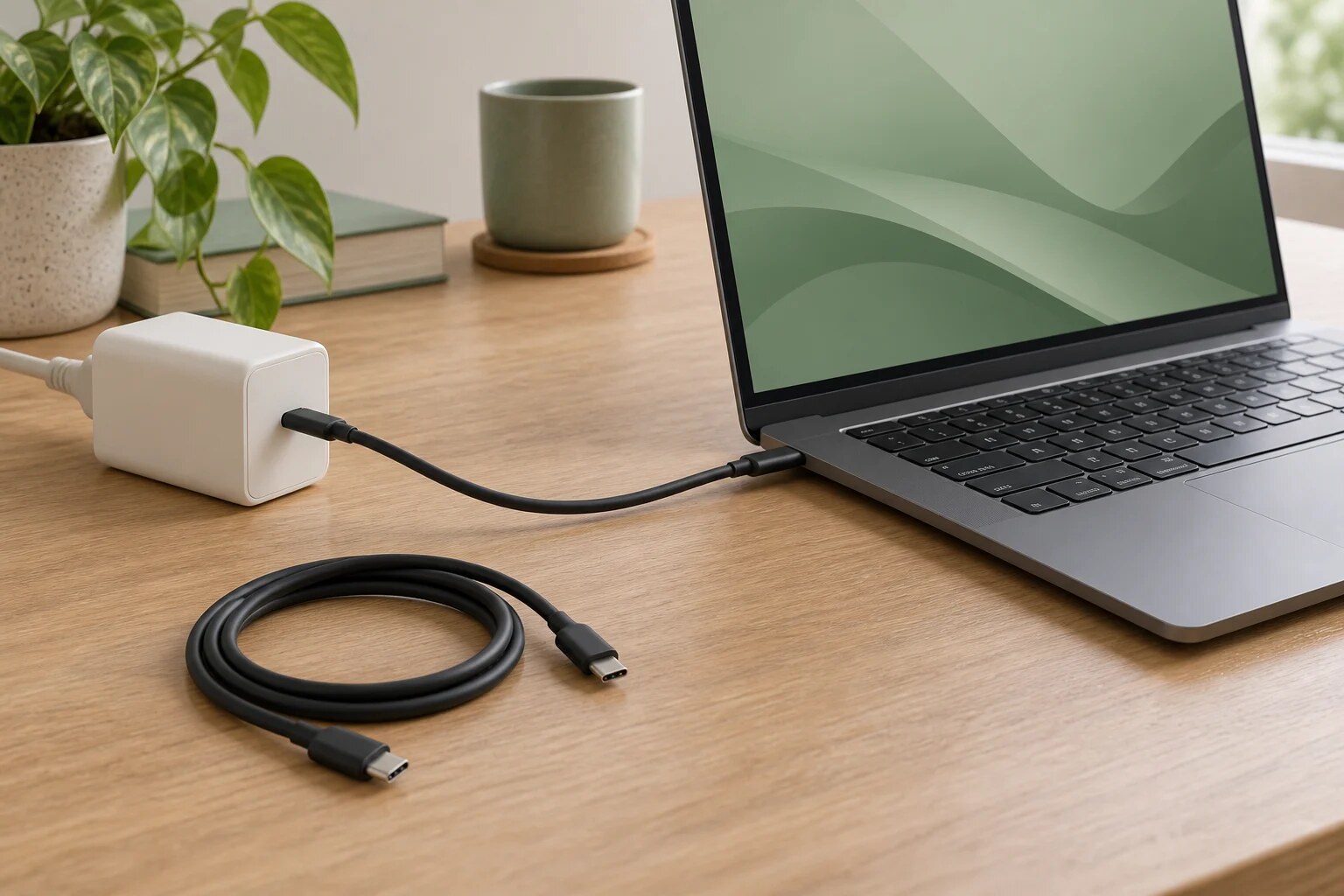
Try a known-good charging cable appropriate for your device, keeping the charger and device the same. For Mac charging faults, Apple specifically recommends testing another charging-capable USB-C cable. If the Mac charges only when you move or wiggle the cable, Apple says to stop using that cable and have the cable and power supply evaluated.
Skip the upgrade if your current, undamaged cable already meets your device’s requirements and charging works as expected.
Build a more useful charging kit
For charging in a car, use our USB-C car-charger wattage guide. For a shared desk or travel kit, see multi-device charging stations and travel electronics organizers.
Sources and accuracy note
This is a specification-based cable-identification guide, not a hands-on cable test or a ranked product list. Sources checked September 10, 2026: USB-IF’s USB Power Delivery overview, USB-IF cable certification and marking updates, Apple’s charging and Thunderbolt cable comparison, and Apple’s Mac USB-C charging troubleshooting. The Apple troubleshooting steps apply to Macs; use your own manufacturer’s instructions for other devices.
When a second device slows charging
Use our multiport charger power-sharing guide to read the charger’s port-combination chart before replacing working gear.